# Appearance, notifications and keyboard shortcuts
> Set dark or light mode and a pane layout, get a notification when the builder needs your answer, and use the full list of keyboard shortcuts.
- Source: https://www.aui.io/help/getting-started/appearance-and-shortcuts
- Section: Getting started
- Last updated: November 23, 2026
Your personal settings live in one window. Open it from the user menu: click your name (or the person icon) at the foot of the side rail, then click **Settings**. It has four sections: **Profile**, **Appearance**, **Notifications** and **Keyboard shortcuts**.
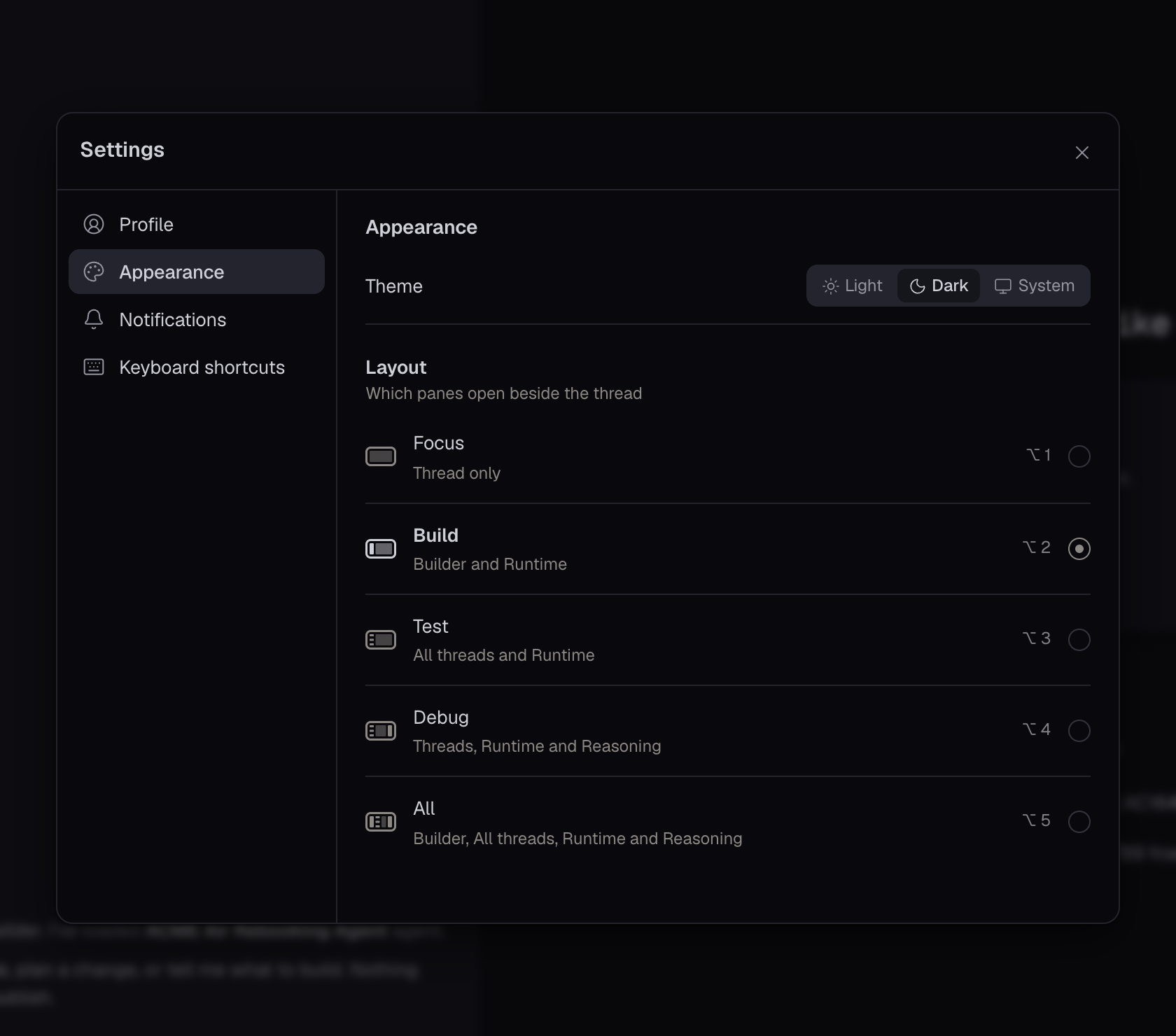
*Theme and pane layout are under Appearance.*
## Profile
Enter your **First name** and **Last name** and click **Save**. Your sign-in email is shown for reference. Customers see this name when you reply to them from the **Live agent** page; without one, they see your email address. See [Hand conversations to your team with Live agent](https://www.aui.io/help/operating/live-agent).
## Appearance
- **Theme**: **Light**, **Dark**, or **System** to follow your computer's setting.
- **Layout**: which panes open beside the conversation. Pick **Focus**, **Build**, **Test**, **Debug** or **All**; each preset is described in [A tour of the Playground](https://www.aui.io/help/getting-started/tour-of-the-playground#arrange-the-panes).
## Notifications
Each builder session runs in its own virtual machine on AUI's side, so a turn keeps running while you do something else, even if you close the tab. When the builder stops to ask you a question, it waits until you answer. A notification tells you when that happens.
1. Open **Settings** > **Notifications**.
2. Turn on **Notify me when the Builder needs my answer**.
3. If your browser asks for permission to show notifications, allow it.
You then get a system notification when a builder turn you started needs your answer while the Playground tab is in the background. Click it to open the session. If the session is on an agent in another workspace, switch to that workspace first.
The builder also offers this after your first message in a session: click **Turn on** to go to the setting, or **Dismiss** to hide the offer on this device.
> [!TIP]
> On a Mac, also open **System Settings** > **Notifications**, allow your browser, and set its style to **Alerts**. Chrome delivers notifications that wait for an answer through a separate entry, **Google Chrome Helper (Alerts)**: allow that one as well. **Focus** and **Do Not Disturb** hide notifications.
If the switch is grayed out, hover it to see why: for example, notifications are blocked in your browser's site settings, or the browser does not support them. Notifications work in Chrome, Firefox and Safari.
## Keyboard shortcuts
Press ? anywhere outside a text field to see the shortcut list, or click **Keyboard shortcuts** at the foot of the side rail. The same list is in **Settings** > **Keyboard shortcuts**.
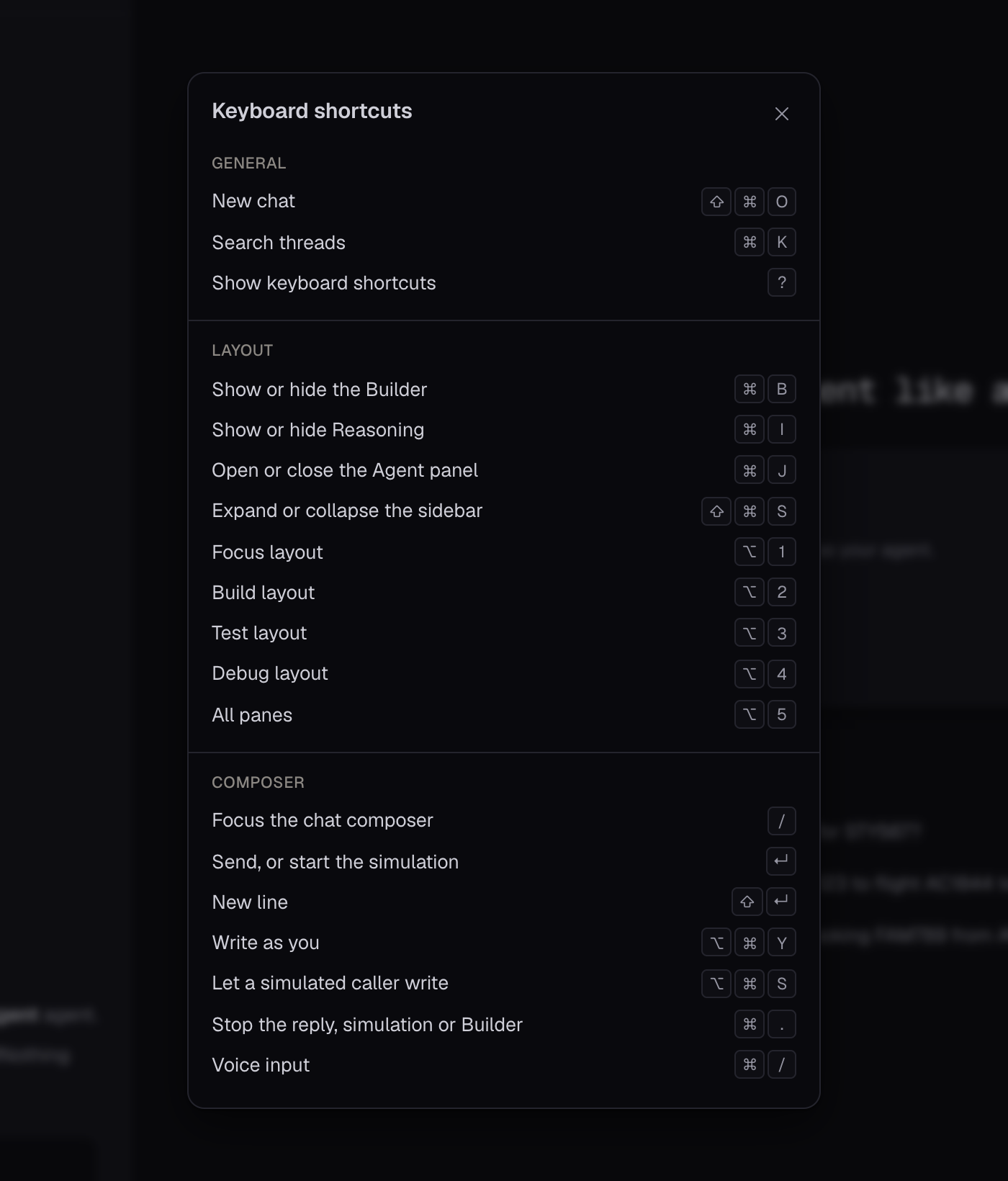
*Press ? to open this list.*
### General
| Action | Mac | Windows, Linux |
|---|---|---|
| New chat | ⇧ ⌘ O | Ctrl Shift O |
| Search threads | ⌘ K | Ctrl K |
| Show keyboard shortcuts | ? | ? |
### Layout
| Action | Mac | Windows, Linux |
|---|---|---|
| Show or hide the Builder | ⌘ B | Ctrl B |
| Show or hide Reasoning | ⌘ I | Ctrl I |
| Open or close the Agent panel | ⌘ J | Ctrl J |
| Expand or collapse the sidebar | ⇧ ⌘ S | Ctrl Shift S |
| Focus layout | ⌥ 1 | Alt 1 |
| Build layout | ⌥ 2 | Alt 2 |
| Test layout | ⌥ 3 | Alt 3 |
| Debug layout | ⌥ 4 | Alt 4 |
| All panes | ⌥ 5 | Alt 5 |
### Composer
| Action | Mac | Windows, Linux |
|---|---|---|
| Focus the chat composer | / | / |
| Send, or start the simulation | ↵ | Enter |
| New line | ⇧ ↵ | Shift Enter |
| Write as you | ⌥ ⌘ Y | Ctrl Alt Y |
| Let a simulated caller write | ⌥ ⌘ S | Ctrl Alt S |
| Stop the reply, simulation or Builder | ⌘ . | Ctrl . |
| Voice input | ⌘ / | Ctrl / |
### Keys in specific places
| Where | Keys | What they do |
|---|---|---|
| Reasoning pane open | ↑ ↓ | Step to the previous or next turn, when you are not typing in a field |
| An empty composer | / | Opens a menu of what the composer can do, such as attaching files or, in the builder, switching mode |
| Session name menu in the builder | R, N, A | **Rename session**, **New session**, **All sessions** |
| Renaming a session | ↵, Esc | Save, cancel |
| A builder question card | ↵ | Sends the answer you typed |
| The **Commit message** field | ↵ | Pushes |
| **Build your own Agent** window | ⌘ ↵ | Builds the agent (Ctrl ↵ on Windows and Linux) |
Single-key shortcuts such as ? and / do nothing while you are typing in a field. In the program files viewer, ⌘ K, ⌘ I and ⌘ B belong to the code viewer instead. New chat uses ⇧ ⌘ O because browsers reserve ⌘ N.