# A tour of the Playground
> Learn what each part of the Playground is for, what you do there, and how to move around, with a first five minutes you can follow along.
- Source: https://www.aui.io/help/getting-started/tour-of-the-playground
- Section: Getting started
- Last updated: November 25, 2026
The Playground's main screen puts everything about one agent side by side. Read it left to right and it tells one story: on the left you **change** the agent, in the middle you **talk** to it, and on the right you see **why** it answered the way it did. Almost everything you do in the Playground is a loop through those three: talk, look at the reasoning, change, talk again.
This page names each area, shows what you do there, and ends with a table of where to find things. The first time you open the Playground, a short guided tour points out the same areas.
[Video: A tour of the Playground (62 seconds)](https://www.aui.iohttps://pxjl3qwxvjcixvl1.public.blob.vercel-storage.com/help/getting-started/tour-of-the-playground/walkthrough-24c55873e475.mp4)
Video transcript:
> The Playground puts everything about one agent side by side. On the left you change it, in the middle you talk to it, and on the right you see why it answered.
> On the left is the Agent Builder. You ask about your agent, plan a change, or tell it what to build, in plain language.
> In the middle is the Apollo-1 Runtime. Type a question the way a customer would, and the agent replies.
> On the right is Reasoning. For every reply it shows what came in, what the agent looked up, what it decided, and what it did.
> The top bar shows your organization, workspace, agent and branch. Click the agent to switch agents, or the branch to see its commits.
> The side rail takes you to deployment, your organization, analytics and live agent.
> And you can change the layout to fit the job: just the conversation, the builder beside it, or everything at once.
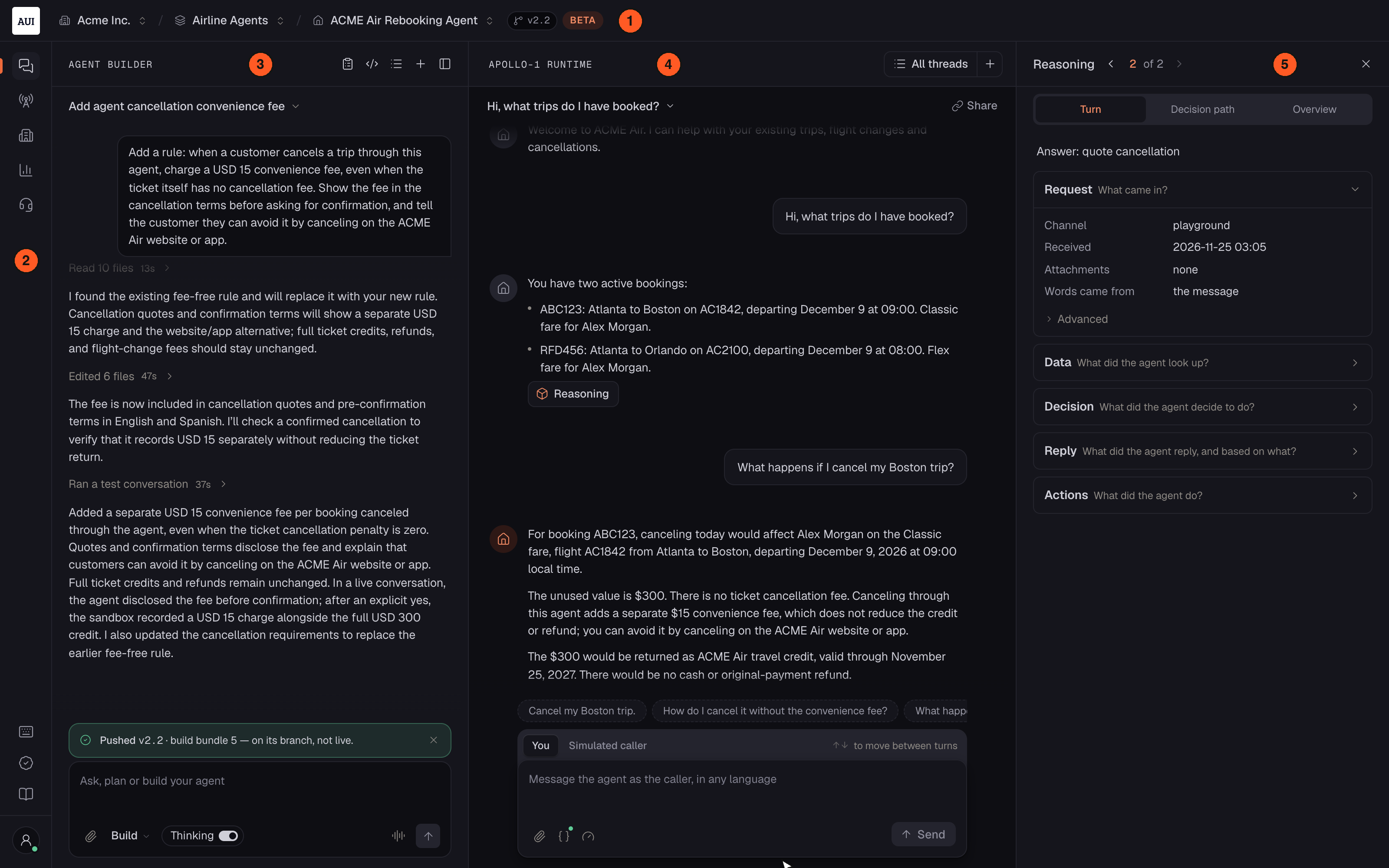
*The five areas of the main screen.*
| | Area | What it is for | You use it to |
|---|---|---|---|
| 1 | **Top bar** | Shows which organization, workspace, agent and branch you are in | Switch agent, or open the Branches window |
| 2 | **Side rail** | Takes you to the rest of the product | Deploy, manage your organization, open Analytics and Live agent |
| 3 | **Agent Builder** | An assistant that reads and edits your agent | Ask how the agent works, plan a change, make a change |
| 4 | **Apollo-1 Runtime** | The conversation with your agent | Test the agent as a customer would |
| 5 | **Reasoning** | What the agent knew, decided and did on one reply | Check why it answered that way |
## Your first five minutes
The quickest way to learn the screen is to use it once. With any agent open:
1. **Say something to the agent.** In the middle pane, make sure **You** is selected above the message box, type a question a customer would ask, and press Enter.
2. **Read the reasoning.** The Reasoning pane on the right fills in for that reply. If it is closed, click **Reasoning** under the reply. Open **Data** to see what the agent looked up and worked out, and **Decision** to see what it chose to do.
3. **Ask the builder about it.** In the left pane, switch the mode to **Ask** and type a question such as "Why did the agent say there is no cancellation fee?". Asking changes nothing.
4. **Change something.** Switch the mode to **Build** and describe a rule in plain words. The builder edits the agent, tests the change, and holds it as **Unsaved changes**.
5. **Try it, then push.** Ask your question again in the middle pane: it now runs against the change. When you are happy, click **Push** to save it as a commit. Nothing reaches customers until someone makes that commit live.
[Clip: Steps 1 and 2: send a message, and the reasoning for the reply appears on the right.](https://www.aui.iohttps://pxjl3qwxvjcixvl1.public.blob.vercel-storage.com/help/getting-started/tour-of-the-playground/first-message-ea535d57913d.mp4)
*In the Apollo-1 Runtime pane, the question Hi, what trips do I have booked is typed into the message box with You selected, and sent. The agent replies that there are two active bookings, ABC123 from Atlanta to Boston and RFD456 from Atlanta to Orlando, and the Reasoning pane opens on the right showing the Turn tab for that reply.*
The full version of steps 3 to 5, with a worked example, is in [Change your agent's behavior](https://www.aui.io/help/building/change-your-agents-behavior).
## The three panes
### Agent Builder (left)
The **Agent Builder** is an assistant that reads and edits your agent for you. You never edit the agent's files by hand here: you describe what you want in the message box at the bottom, and the builder does the work and reports back in the same pane.
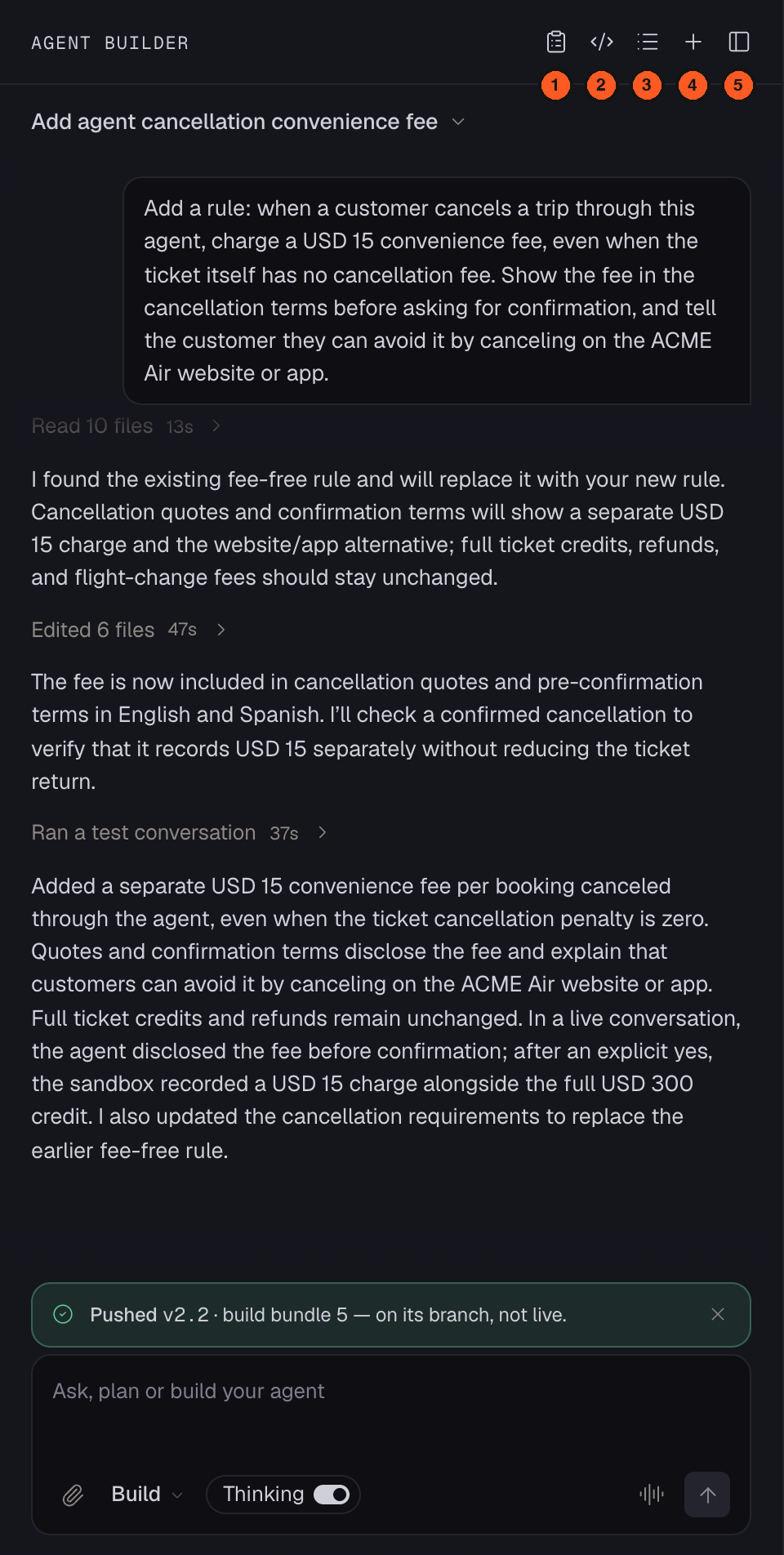
*A finished request in the Agent Builder, with its header buttons numbered.*
**What you do here**
- **Pick a mode, then type.** The mode menu under the message box has **Build** to change the agent, **Ask** to understand it without changing anything, and **Plan** to work out a change before making it. See [Build, Ask and Plan modes](https://www.aui.io/help/building/builder-modes).
- **Follow its work.** The builder writes short notes as it goes, with rows such as **Read 10 files** or **Ran a test conversation** that you can open for detail. It ends with a summary of what it changed.
- **Answer its questions.** When the builder needs a decision from you, it stops and shows a question card. See [Answer the builder's questions](https://www.aui.io/help/building/answer-the-builders-questions).
- **Push.** When the builder has edits you have not saved, an **Unsaved changes** chip appears beside the pane's heading and a **Push** bar appears above the message box. See [Unsaved changes and Push](https://www.aui.io/help/building/unsaved-changes-and-push).
**The header buttons**, numbered in the picture above:
1. **Agent panel**: the agent's overview, integrations and widgets. See [The Agent panel](https://www.aui.io/help/agent-program/the-agent-panel).
2. **Program files** (``): the program of the branch you have open, read-only. See [Read the program files](https://www.aui.io/help/agent-program/read-program-files).
3. **All sessions**: your earlier conversations with the builder. See [Builder sessions](https://www.aui.io/help/building/builder-sessions).
4. **New session** (**+**): start a fresh conversation with the builder.
5. The button that hides the pane.
### Apollo-1 Runtime (middle)
The **Apollo-1 Runtime** pane is the conversation with your agent, exactly as a customer would have it. This is where you find out what the agent actually does.
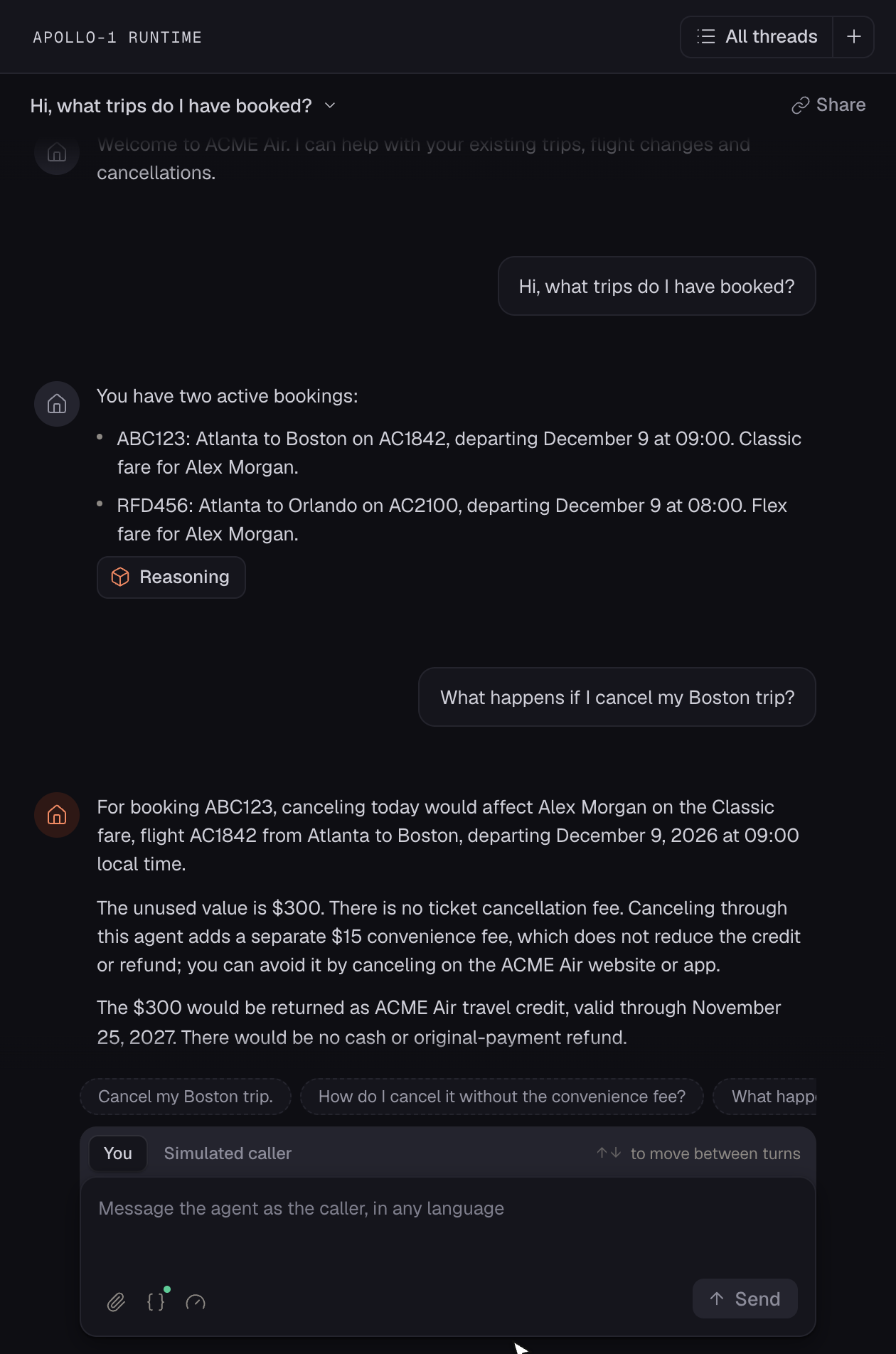
*A conversation in the Apollo-1 Runtime pane.*
**What you do here**
- **Write as a customer.** With **You** selected above the message box, your messages go to the agent as a customer's would. See [Talk to your agent](https://www.aui.io/help/testing/talk-to-your-agent).
- **Let a caller write for you.** Select **Simulated caller** and a separate model plays the customer for a whole conversation. See [Simulate a caller](https://www.aui.io/help/testing/simulated-callers).
- **Open the reasoning for any reply** with the **Reasoning** button under it.
- **Move between conversations.** **All threads** at the top right opens any saved conversation, and **+** starts a new one. See [Find and filter threads](https://www.aui.io/help/testing/threads-and-filters).
- **Change who is calling.** The braces button in the message box sets the agent variables and test caller for the conversation. See [Agent variables and test callers](https://www.aui.io/help/testing/agent-variables-and-test-callers).
With no thread open, the pane shows **Talk to your agent like a customer would** and your recent threads.
> [!NOTE]
> Your conversations here run against the branch shown in the top bar, including any unsaved changes the builder is holding. They do not change what customers get.
### Reasoning (right)
The **Reasoning** pane shows what the agent knew, decided and did on one reply. It is how you tell a wrong answer caused by missing data from one caused by a rule.
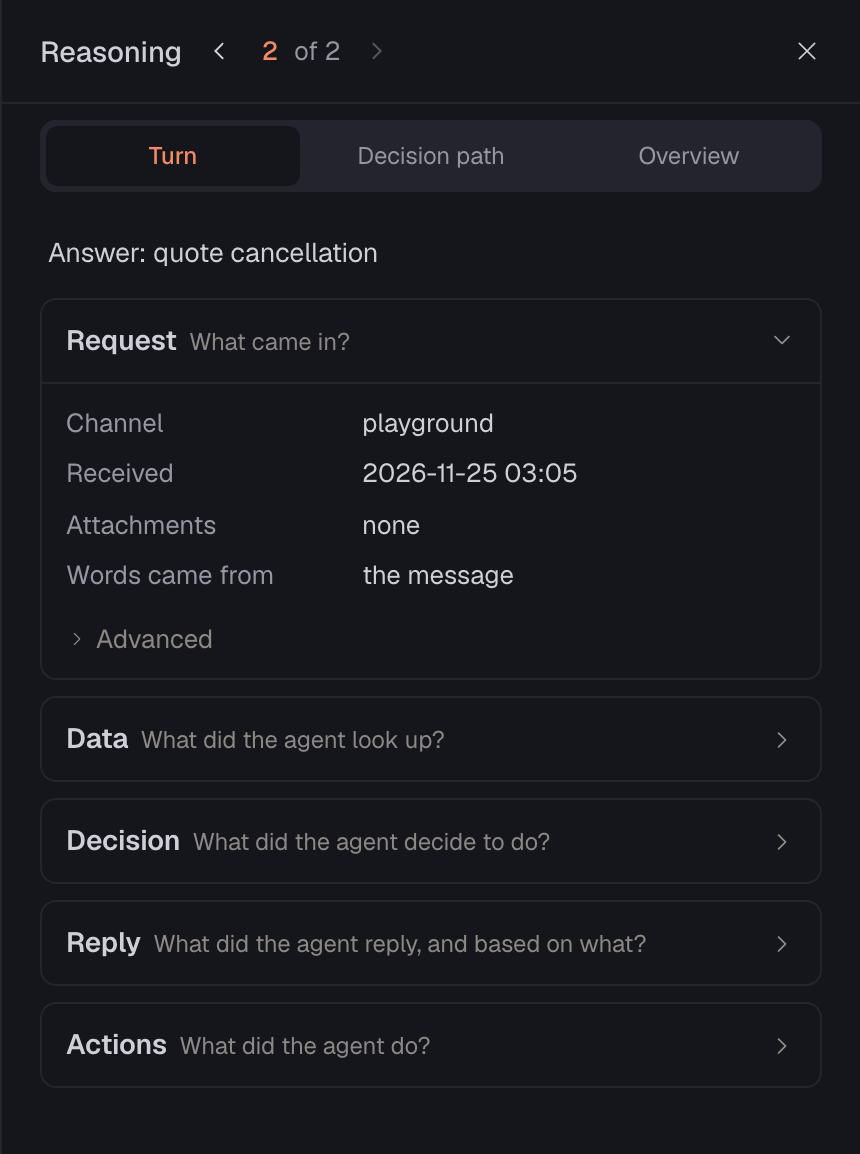
*The Reasoning pane on one reply.*
**What you do here**
- **Step through the conversation** with the arrows beside the turn counter at the top.
- **Read one turn** on the **Turn** tab, in five sections: **Request** (what came in), **Data** (what the agent looked up and worked out), **Decision** (what it chose to do), **Reply** (what it said, and based on what) and **Actions** (what it changed in your systems). See [The Turn tab](https://www.aui.io/help/understanding-decisions/turn-tab).
- **Follow the steps the agent took** on the **Decision path** tab. See [The Decision path tab](https://www.aui.io/help/understanding-decisions/decision-path).
- **Ask about what you see.** The Agent Builder knows which turn you have open, so in Ask mode you can ask about it directly. See [Ask the builder about a turn](https://www.aui.io/help/understanding-decisions/ask-the-builder-about-a-turn).
For the whole pane, see [The Reasoning pane](https://www.aui.io/help/understanding-decisions/the-reasoning-pane).
## The top bar
The top bar shows where you are as a breadcrumb: **organization / workspace / agent / branch**. Click any part to switch.

*Click any part of the breadcrumb to switch.*
- **Organization** and **workspace** open a searchable list. See [Organizations, workspaces and agents](https://www.aui.io/help/getting-started/organizations-workspaces-and-agents).
- **Agent** opens the agent picker, where you can search, pin and add agents.
- The **branch pill** shows the branch and commit you have open and opens the **Branches** window, where you see commits and choose which one is live. Your next message to the agent runs against what is shown here. See [Branches and commits](https://www.aui.io/help/branches/branches-and-commits).
A **Beta** chip after the branch pill means the branch runs on the Beta runtime. See [Try the Beta runtime](https://www.aui.io/help/branches/beta-runtime).
[Clip: The agent picker and the Branches window both open from the top bar.](https://www.aui.iohttps://pxjl3qwxvjcixvl1.public.blob.vercel-storage.com/help/getting-started/tour-of-the-playground/breadcrumb-36441c89372b.mp4)
*The pointer selects the agent name in the top bar and the agent picker opens, listing three agents with a search box and Add agent. It closes, and the pointer selects the branch pill, which opens the Branches window listing the agent's branches.*
## The side rail
The side rail on the far left takes you to the rest of the product. Click the AUI logo, or press ⇧ ⌘ S, to expand it and show labels.
[Clip: Expand the rail to see labels; Deployment opens to its four pages.](https://www.aui.iohttps://pxjl3qwxvjcixvl1.public.blob.vercel-storage.com/help/getting-started/tour-of-the-playground/side-rail-0b2fe9dfcaaf.mp4)
*The pointer selects the AUI logo and the side rail widens to show a label beside every icon: Playground, Deployment, Organization, Analytics and Live agent, with Keyboard shortcuts, About Apollo-1 and API Docs at the foot. Deployment is then selected and opens to list Conversation SDK, Deploy web-widget, Deploy via messaging and Web Widget Settings.*
| Item | What it opens |
|---|---|
| **Playground** | The three-pane screen described above |
| **Deployment** | **Conversation SDK** (developer docs), **Deploy web-widget**, **Deploy via messaging app** and **Web Widget Settings** |
| **Organization** | **Billing**, **Members**, **Settings** and **API Keys** for your organization |
| **Analytics** | Dashboards and a chat that answers questions about your agent's results |
| **Live agent** | Conversations the agent has handed to a person on your team |
| **Keyboard shortcuts** | The list of shortcuts |
| **About Apollo-1** | Background on the model, on aui.io |
| **API Docs** | The developer documentation at docs.aui.io |
| Your name | The user menu, with **Settings** and **Log out** |
If you hide the Agent Builder pane, an **Open Builder** item appears in the rail so you can bring it back.
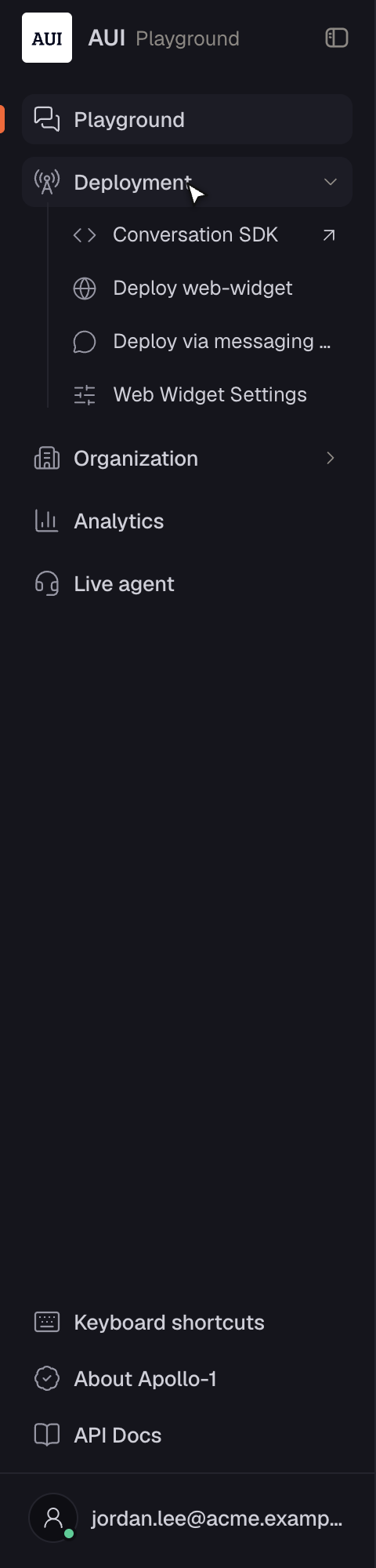
*The expanded side rail.*
## Arrange the panes
You rarely need all three panes at once. Show or hide each pane on its own, or pick a layout preset that opens the set of panes that suits what you are doing. The **All threads** list can also be pinned as a pane beside the conversation.
[Clip: The five layout presets, from Focus to All.](https://www.aui.iohttps://pxjl3qwxvjcixvl1.public.blob.vercel-storage.com/help/getting-started/tour-of-the-playground/layout-presets-76a7c79afab1.mp4)
*The Playground switches through its five layout presets in turn: Focus shows the conversation only; Build shows the Agent Builder and the conversation; Test shows the All threads list and the conversation; Debug shows All threads, the conversation and the Reasoning pane; All shows the Agent Builder, All threads, the conversation and the Reasoning pane.*
| Preset | Shows | Shortcut (Mac) | Shortcut (Windows, Linux) |
|---|---|---|---|
| **Focus** | The conversation only | ⌥ 1 | Alt 1 |
| **Build** | Builder and conversation | ⌥ 2 | Alt 2 |
| **Test** | All threads and conversation | ⌥ 3 | Alt 3 |
| **Debug** | All threads, conversation and Reasoning | ⌥ 4 | Alt 4 |
| **All** | Builder, All threads, conversation and Reasoning | ⌥ 5 | Alt 5 |
**Which one to pick**
- **Build** while you are describing changes to the builder and trying them.
- **Test** when you are going through many conversations one after another.
- **Debug** when you are working out why particular replies went wrong.
- **Focus** to show the conversation to someone else without distraction.
You can also pick a preset in **Settings** > **Appearance** > **Layout**. To toggle single panes, use ⌘ B for the builder, ⌘ I for Reasoning and ⌘ J for the Agent panel (Ctrl instead of ⌘ on Windows and Linux). The Playground opens with the layout you used last. See [Appearance, notifications and keyboard shortcuts](https://www.aui.io/help/getting-started/appearance-and-shortcuts).
## Where do I find…?
| I want to… | Go to |
|---|---|
| Change what the agent does | Agent Builder, **Build** mode |
| Ask how the agent works | Agent Builder, **Ask** mode |
| See why the agent gave an answer | **Reasoning** under the reply |
| Start a new conversation | **+** at the top of the Apollo-1 Runtime pane |
| Find an earlier conversation | **All threads** |
| Find an earlier conversation with the builder | **All sessions** in the Agent Builder header |
| See what the agent is connected to | **Agent panel** > **Integrations** |
| Read the agent's program | **Program files** (``) in the Agent Builder header |
| Save my changes | **Push**, above the builder's message box |
| Switch branch, or choose what customers get | The **branch pill** in the top bar |
| Put the agent on my website | Side rail > **Deployment** |
| Invite a teammate | Side rail > **Organization** > **Members** |
| See how the agent is doing | Side rail > **Analytics** |
| Change the theme or see shortcuts | Your name at the foot of the side rail > **Settings** |
## Next steps
- [Create your first agent](https://www.aui.io/help/getting-started/create-your-first-agent)
- [Talk to your agent](https://www.aui.io/help/testing/talk-to-your-agent)
- [Change your agent's behavior](https://www.aui.io/help/building/change-your-agents-behavior)