# Integrations
> See which systems your agent is connected to, check how each connection is set up, and test one of its operations.
- Source: https://www.aui.io/help/integrations/integrations-overview
- Section: Integrations and data
- Last updated: November 23, 2026
Integrations are the outside systems your agent reads from and acts on: your own APIs, MCP tool servers, and knowledge hubs of documents. When the ACME Air Rebooking Agent looks up a trip or cancels a flight, it does so through an integration.
In the agent's program files, integrations are declared as *connections*, and the *sources* that use them say which facts each one supplies. The Playground shows them together as integrations.
## Kinds of integration
| Kind | What it is | ACME Air example |
|---|---|---|
| **API** | An HTTP service with named operations the agent can call. | The booking system: look up a trip, change a flight, cancel a booking. |
| **MCP** | A tool server that speaks the Model Context Protocol. Each operation calls one of its tools. | A ticketing tool the support team already uses. |
| **RAG** | A knowledge hub: documents the agent searches for answers. | Fare rules and the baggage policy. |
A [sandbox database](https://www.aui.io/help/integrations/sandbox-database) appears as an **API** integration, because the agent reaches it the same way it reaches any API.
## See your agent's integrations
1. In the Agent Builder header, click the **Agent panel** button, or press ⌘ J (Ctrl J on Windows and Linux).
2. Open the **Integrations** tab. The number beside it is how many integrations the agent has.
3. Type in **Search integrations…** to find one by name. When the agent has more than one kind, the filter button beside the search shows one kind at a time.
4. Click a card to open its details.
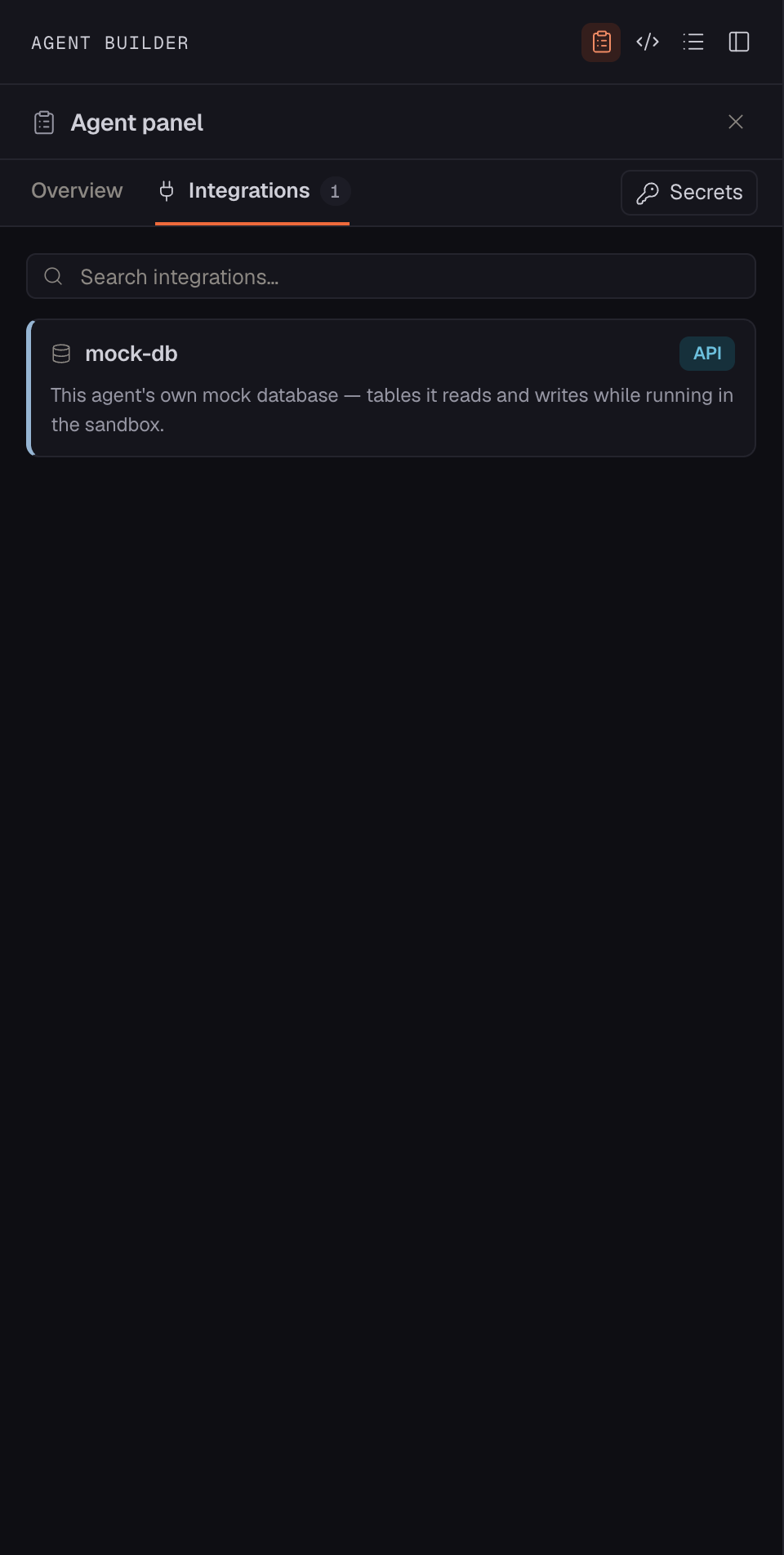
*The Integrations tab lists every system the agent can reach.*
The list shows the integrations of the commit you are working on. An integration the builder has added but you have not pushed yet may only appear after you push.
## Read an integration's details
The details are grouped in blocks:
- **Connection** (**Tool server** for MCP): the kind, the base URL, how requests are signed (**Auth**), and any headers sent on every request.
- One **Operation** block per operation, with its method and path and the inputs it takes.
- **Knowledge** (RAG only): the hub's name and **Open knowledge hub**. See [The knowledge hub](https://www.aui.io/help/integrations/knowledge-hub).
Credentials appear as secret names, never values. A name shows **Set** when the agent's vault holds a value under it, or **Missing** when it does not; click the name to manage it. If the connection needs a credential it doesn't name yet, the row offers **Add to vault**. See [Secrets and the vault](https://www.aui.io/help/integrations/secrets-and-the-vault).
Every block has a **raw** switch that shows the declaration exactly as the program writes it.
Some services need a person to sign in and grant access instead of a stored key. Their **Connection** block has a **Consent** row with **Sign in**. It produces a link to send to whoever owns the account, and the exact redirect address their provider app must have registered. Their consent is saved in the vault.
## Test an operation
A test calls one operation for real and shows what came back. Use it to tell a wrong address or credential apart from a problem in the agent's reasoning.
1. Open the integration and find the operation.
2. Click **test** in the operation's header.
3. Fill in the inputs. An operation that takes none can be sent as is.
4. Click **Send request**.
The result shows the outcome, the HTTP status, how many rows came back, and the response body.
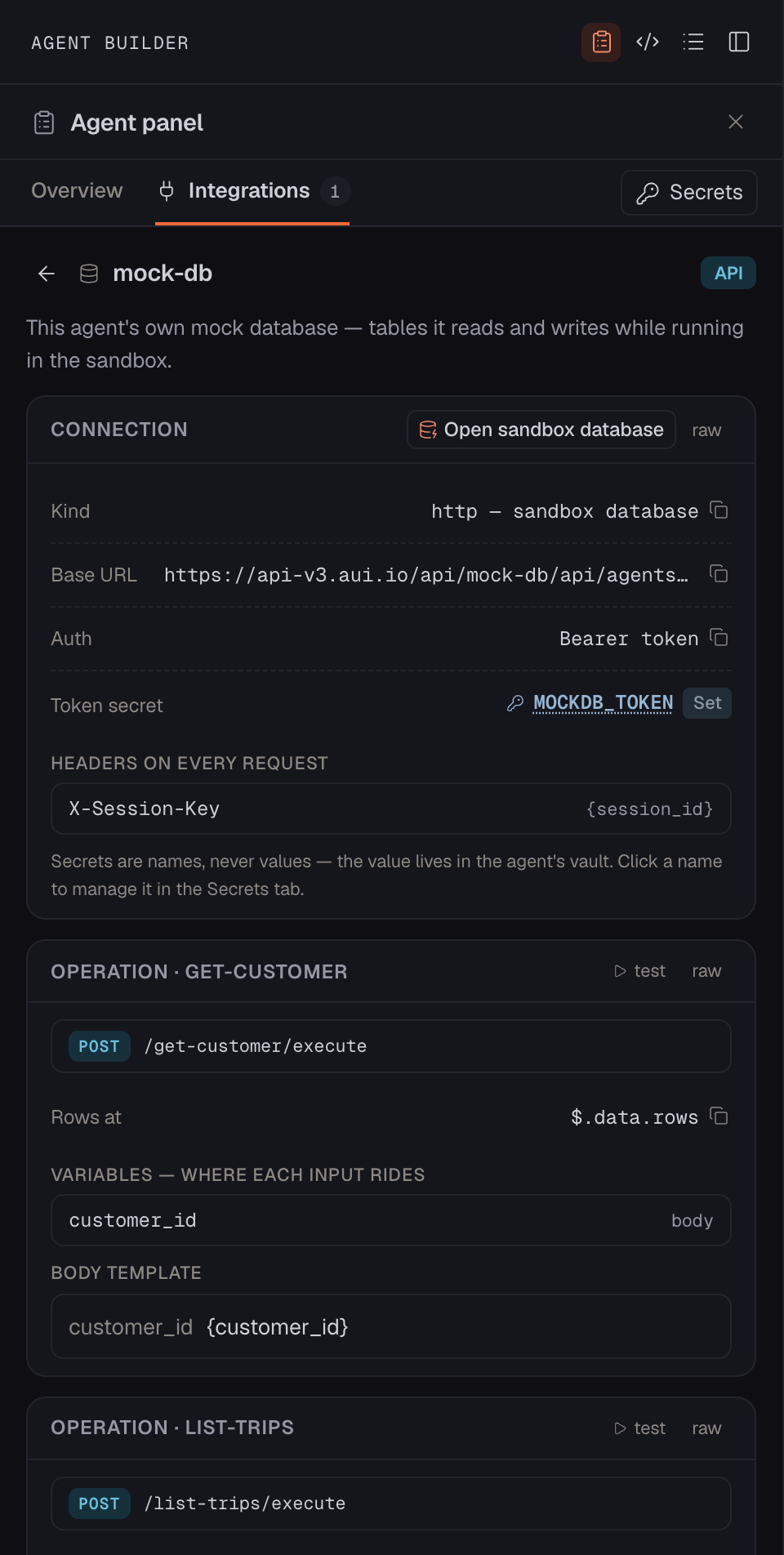
*Each operation has a test link next to its name.*
Tests run against the saved commit, so push builder edits first if you want to test them.
> [!WARNING]
> A test is a real request to the real system. Testing an operation that changes data, such as canceling a booking, makes that change.
## Add or change an integration
You don't fill in integrations by hand: you ask the builder. In **Build** mode, describe the system, what it holds, what the agent should do with it, and where its documentation is. Attach an API description or example responses if you have them.
While it works, the builder may show cards in its conversation: a searchable list of well-known services with **Authorize connection** to sign in to one, or a request to save a credential straight to the vault. The result is staged like any other edit; see [Unsaved changes and Push](https://www.aui.io/help/building/unsaved-changes-and-push).
## Conversations call integrations for real
A conversation in the Playground calls whatever the agent's integrations point at. If an integration points at a sandbox database, reads and writes stay there. If it points at your real booking system, the agent makes real calls. See [Talk to your agent](https://www.aui.io/help/testing/talk-to-your-agent).