# Share, translate or hide a thread
> Share a conversation by link inside or outside your organization, read it in another language, or take it off the thread list.
- Source: https://www.aui.io/help/testing/share-a-thread
- Section: Testing your agent
- Last updated: November 23, 2026
Each thread has a menu of things you can do with it: share it with a link, translate it for reading, hide it from the list, or continue it on your phone. Share a thread when you want a colleague or a stakeholder to read a conversation and the agent's reasoning, for example a reply you want reviewed before you change a policy.
## Open the thread options
Use either of these:
- At the top of an open conversation, click the thread's title (with the arrow next to it).
- In **All threads**, hover over a row and click **Thread options** (**⋮**).
While the menu is open, you can also press the letter shown on each row: S to share, T to translate, H to hide, M for SMS and W for WhatsApp.
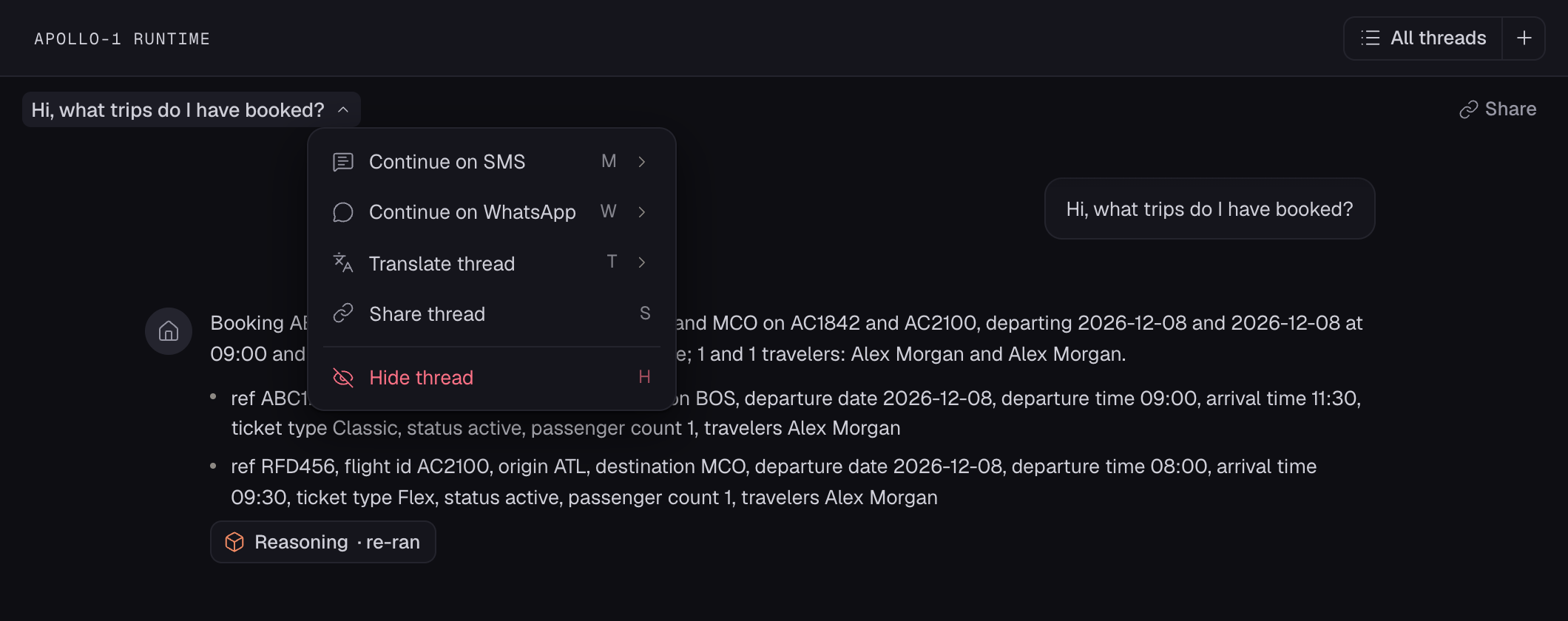
*The thread options menu.*
## Share a thread
1. Click **Share** at the top right of the conversation, or choose **Share thread** in the thread options.
2. In the **Share thread** dialog, choose who can open the link:
| Option | What the link does |
|---|---|
| **Private** | No link is made. This is where the dialog starts. |
| **Internal** | The thread's own Playground address. People in your organization who can open this agent see it after signing in, with everything they would see in the Playground. |
| **Public** | A new link anyone can open without signing in. It shows a read-only copy of the conversation as it stands now, with the agent's reasoning for each turn. |
3. For **Internal**, the link appears at once. Click **Copy link**.
4. For **Public**, choose **This thread only**, or **Select multiple threads** to share several of this agent's threads behind one link (up to 50; the thread you started from is already selected). Then click **Generate share link**, and click **Copy link**.
If you change the option or the selection after generating a public link, the dialog drops that link, and you generate a new one for the new selection.
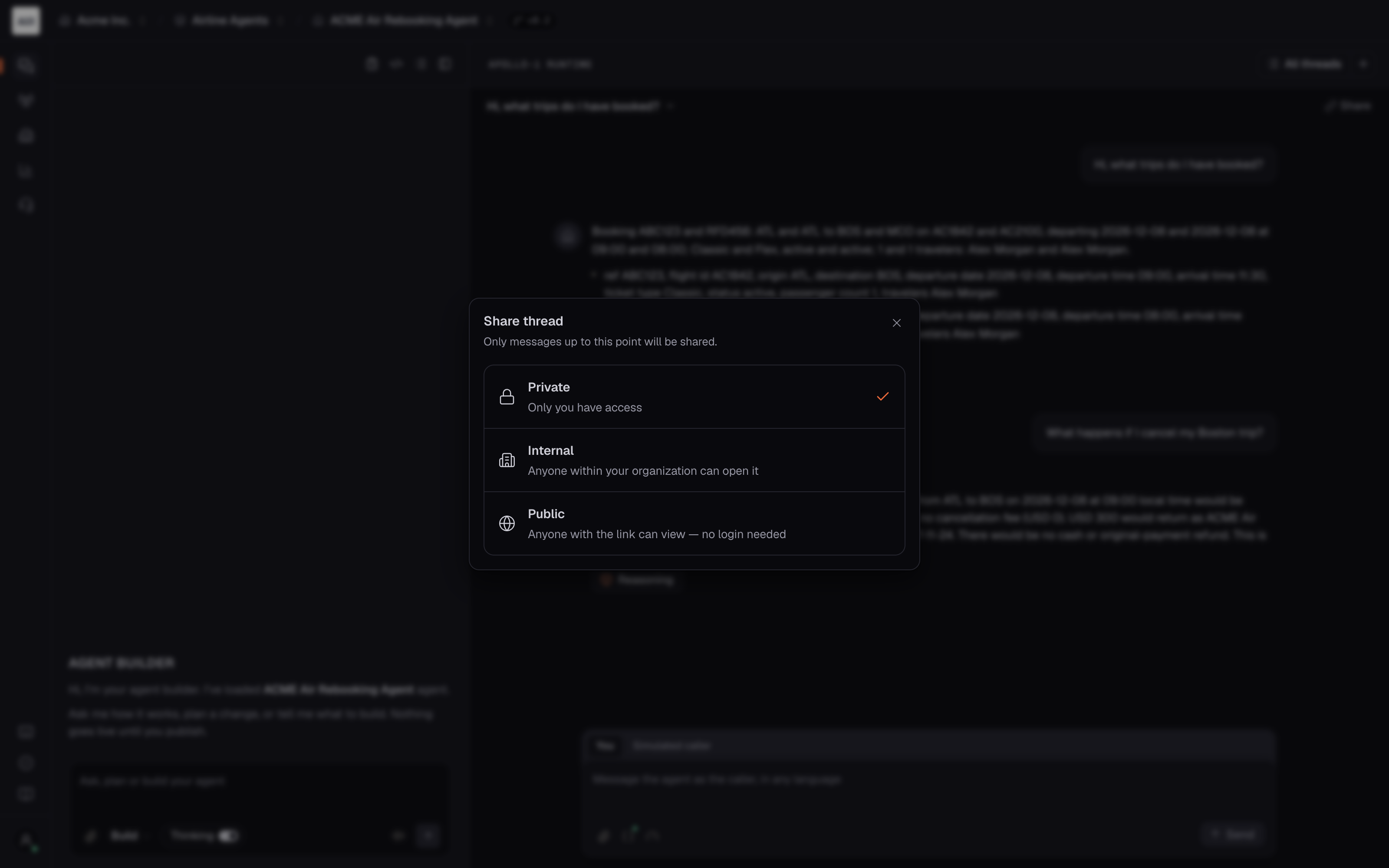
*Choose who can open the shared thread.*
### What a public link shows
People who open a public link see a read-only page with the conversation and, beside it, how the agent reasoned on each turn. They can export the thread to PDF. A viewer who signs in to the Playground can click **Continue** to copy the conversation into their own workspace and carry it on there.
> [!WARNING]
> Anyone who has a public link can read the conversation, including any names, booking codes or account details in it. Before you share a thread publicly, check what the customer side said and what the agent looked up, especially for conversations from real customers or from an agent connected to real systems.
## Translate a thread
1. Open the thread options and click **Translate thread**.
2. In the list that opens beside the menu, pick a language: English, French, Hebrew, Arabic, Chinese, German, Italian, Japanese, Korean, Russian, Spanish or Turkish.
Every message in the thread is shown in that language, and the language code appears next to **Translate thread** in the menu. Hover over a message and click **Show as posted** to see one message as it was written, and **Show translation** to switch back.
Translation changes only what you see. Nothing in the thread is rewritten, and editing, copying or re-running a message uses the original text. Translation stays on for other threads you open until you turn it off: choose **Show original** at the top of the language list, or pick the same language again.
## Hide a thread
1. Open the thread options and choose **Hide thread**.
2. Read the confirmation: the thread leaves the thread list for everyone on this agent.
3. Click **Hide**.
Use this to tidy away test conversations that would only confuse others. Hide a thread only when nobody on the agent still needs it.
## Continue on SMS or WhatsApp
**Continue on SMS** and **Continue on WhatsApp** pick up the conversation on your own phone: enter your number with its country code, and the agent messages you there so you can reply from the phone. Both need a Twilio number set up for that channel first. See [Deploy on SMS and WhatsApp](https://www.aui.io/help/deploying/messaging-channels).