# Talk to your agent
> Message your agent as a customer would, attach files, set the effort, and know what a Playground conversation does and does not touch.
- Source: https://www.aui.io/help/testing/talk-to-your-agent
- Section: Testing your agent
- Last updated: November 23, 2026
The Apollo-1 Runtime pane, in the middle of the Playground, is where you talk to your agent the way a customer would. You type as the customer, the agent answers, and every reply can be opened in the Reasoning pane to see what the agent knew and decided. Use it to try a behavior by hand, to reproduce something a customer reported, or to check a change before you push it.
## Start a conversation
1. In the Apollo-1 Runtime header, click **New thread** (the **+** next to **All threads**), or press ⇧ ⌘ O (Ctrl Shift O on Windows and Linux). The thread opens on the agent's welcome message if its program has one, or on a page titled **Talk to your agent like a customer would**.
2. Above the message box, select **You**. New threads start on **Simulated caller**, where a separate model plays the customer for you; see [Simulate a caller](https://www.aui.io/help/testing/simulated-callers).
3. Type your message, for example "I need to move my flight AC1842 to tomorrow morning", and press Enter. Press Shift Enter for a new line.
4. Read the reply. The Reasoning pane opens on the first reply; click **Reasoning** under any later reply to show that turn there. See [The Reasoning pane](https://www.aui.io/help/understanding-decisions/the-reasoning-pane).
Each message you send is a turn in the same thread. The thread is saved when you send the first message, and its first words become its title in **All threads**.
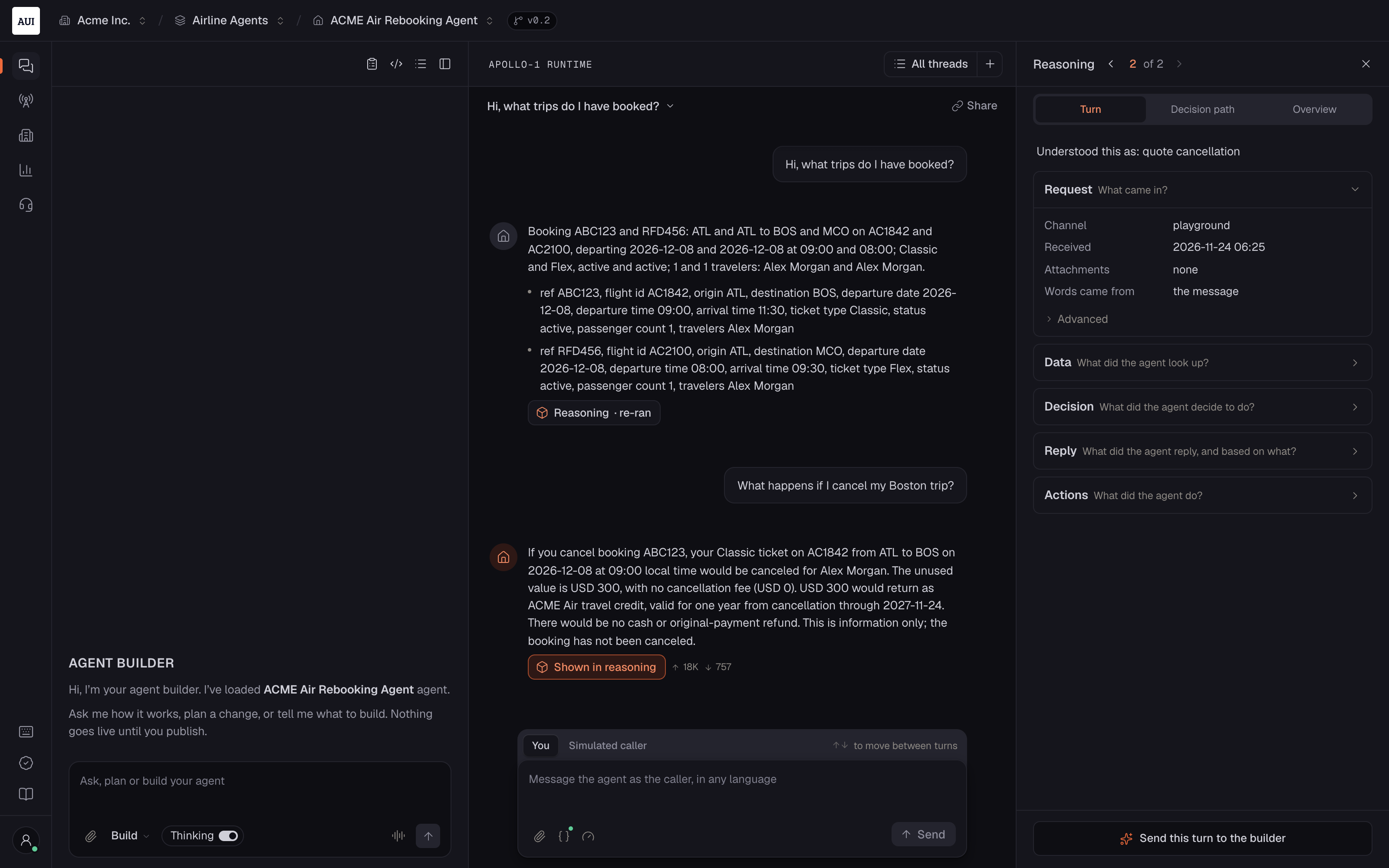
*A conversation in You mode, with the reply's reasoning open on the right.*
## The message box
| Control | What it does |
|---|---|
| **Attach files or photos** (paperclip) | Adds images, PDFs, spreadsheets and other documents to your next message, up to 10 files per message. Documents can be up to 10 MB each; large images are scaled down. You can also paste an image or drop files on the pane. |
| **Agent variables** (`{ }`) | Sets the context your own system would send with each message, such as a verified customer ID. See [Agent variables and test callers](https://www.aui.io/help/testing/agent-variables-and-test-callers). |
| **Effort** | How much work the agent puts into each reply: **Low** (quickest replies), **Medium** (balanced, the default) or **High** (most thorough, a bit slower). |
| **Send** | Sends the message. |
Type / in an empty message box for a short menu of the same actions: add files, switch between **You** and **Simulated caller**, and change the effort.
When the agent offers suggested replies, they appear as buttons above the message box. Click one to send it as your next message.
## What your messages run against
A message runs against the branch shown in the branch pill of the top bar, together with any unsaved changes from the Agent Builder. This is how you test a change before you push it: ask the builder for the change, then talk to the agent here.
A thread stays on the commit it started on. If you open a thread that ran on another commit, the message box says which commit the conversation ran on, with a **Current commit** picker. Pick the thread's commit to continue it; this opens that commit across the Playground, as if you had opened it from the Branches window. Or start a new thread to talk to the commit you have open. To replay one of the thread's messages on the commit you have open instead, see [Edit and re-run a message](https://www.aui.io/help/testing/edit-and-rerun).
## What a Playground conversation touches
A Playground conversation is not automatically sandboxed. It is a real thread that runs on the real runtime:
- It is saved, and it is listed in **All threads** for everyone who works on the agent.
- It is not sent to your customers, and it does not change which commit is live.
- It uses the agent's own integrations. Where an integration points at the [sandbox database](https://www.aui.io/help/integrations/sandbox-database), reads and writes stay there, and each conversation gets its own layer of the data, so what one conversation writes is invisible to the others and the seeded rows do not change. Where an integration points at a real system, the agent calls that system for real.
> [!WARNING]
> If your agent is connected to a live booking or payment system, a Playground conversation that cancels a flight can cancel it for real. Check the agent's integrations in the [Agent panel](https://www.aui.io/help/agent-program/the-agent-panel) before you test actions that change data.
## Stop a reply
Press ⌘ . (Ctrl . on Windows and Linux) to stop a reply that is running. Only one conversation runs at a time, so while a reply is running in another thread, **Send** waits until it finishes.